CREATING YOUR PERSONAL SITE
Setting up a personal site to showcase your projects and accomplishments is something that I would recommend every developer does. I had put it off for a long time because I was always working and figured I didn’t have much that I could show since the software created was essentially owned by the companies that employed me. Eventually you will want to grow and it will be difficult to demonstrate new languages or ideas that are not part of your job descriptions listed on your resume. This is where your personal site will come in, you can add small projects demonstrating these new projects.
HOSTING OPTIONS
There are a number of low cost options for registering a domain name and hosting your own site. I eventually chose CloudFlare because it seemed the most flexible and cost effective.
SETTING UP CLOUDFLARE PAGES
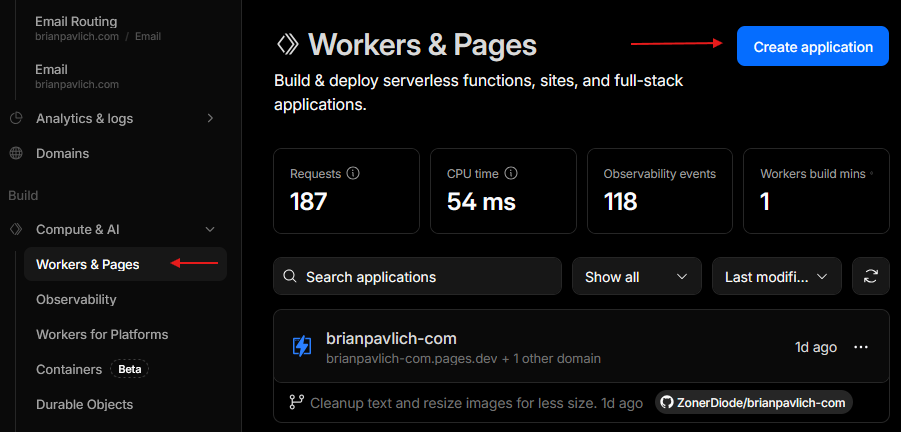
This part was a bit confusing so I am going to go over the parts that caused me issues. It is not all the pages and steps involed, just the tricky parts. The first issue is where and how you setup the environment for your site. You expand the Compute & AI menu and select the Workers & Pages link then press the Create application button.
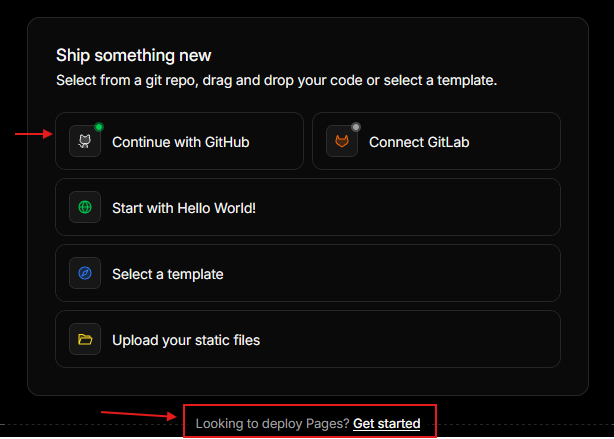
That presents this menu which is not explained well, but the top buttons will setup a worker while the little link at the bottom will setup a static web page. The worker is there to run your ng build / serve commands if you have an Angular site. If you are just hosting some basic HTML pages you will want to pick the bottom link.
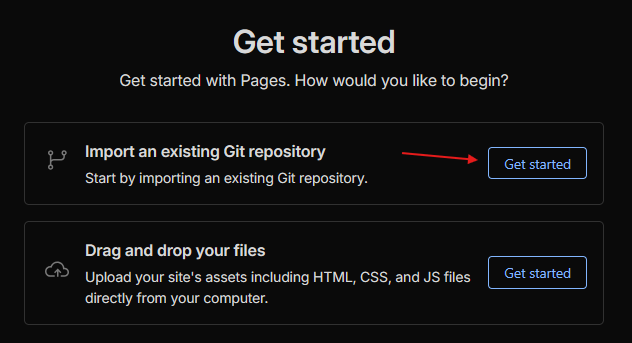
This next part had me wondering what was wrong, it would take me to Git and allow me to select my repository but then it would just come back and I would be at the setup page again. I figured out that it was a Firefox problem; when I came back with Chrome it worked and took me to the next step to setup some things like if you have a folder for root.
After that it was just a matter of waiting for the site to build and deploy. Once that is done you can go to the Settings tab and setup your custom domain name and email routing if you want that.
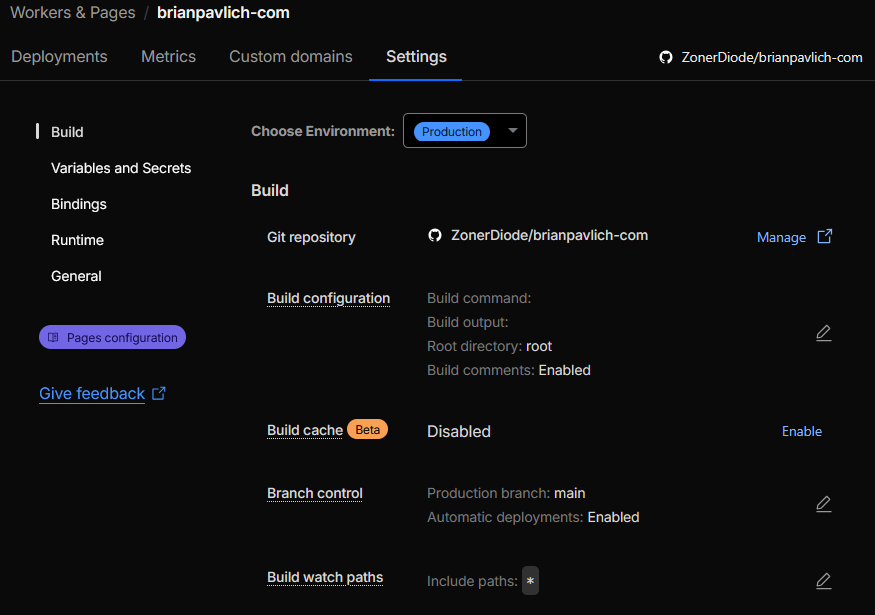
The great thing about having it plugged into GitHub is that it automatically rebuilds and deploys your site whenever you push changes to your repository.
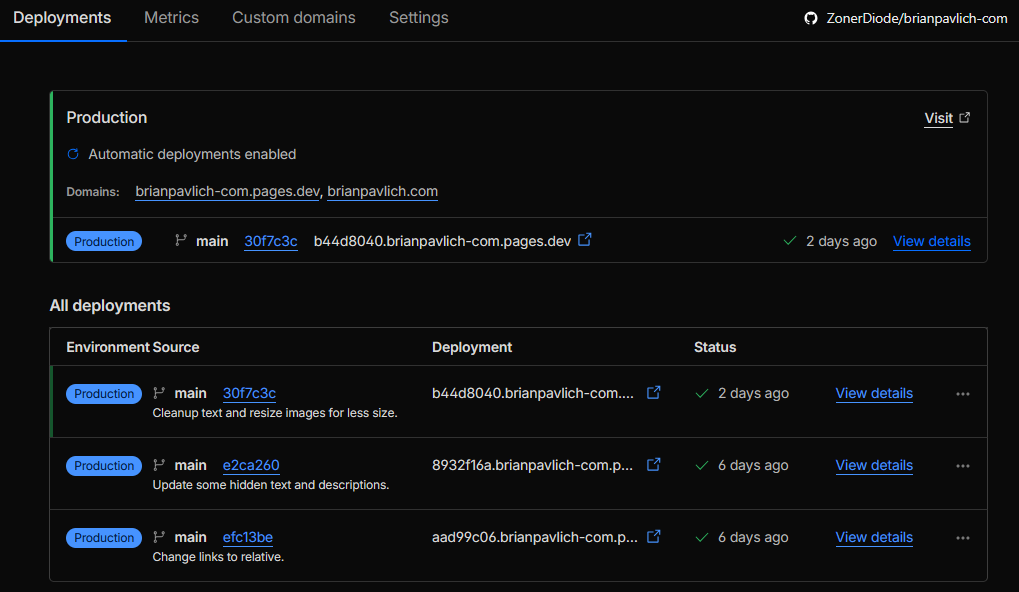
Now you have a personal site to showcase your projects and accomplishments, good luck on your career journey!