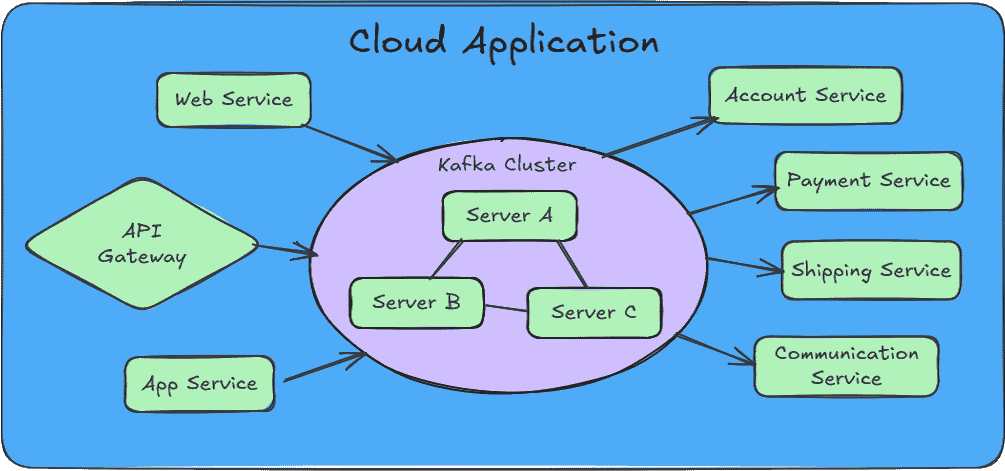
- Clusters - Distributed servers that store copies of messages for redundancy and reliability.
- Topics - Message channels that producers write to and consumers read from.
- Partitions - Subdivisions of topics that enable parallel processing.
- Producers - Services that create and send messages to Kafka.
- Consumers - Services that read and process messages from Kafka.
- Keys - Message identifiers that enable ordering guarantees.
Kafka: Putting it All Together
January 21, 2026
What is Kafka and Why Use It?

Apache Kafka is a queued streaming service that can take millions of messages and guarantee delivery of said messages to eagerly waiting services. The primary value of Kafka lies in its ability to absorb traffic spikes and enable horizontal scaling of consumer services without message loss.
When your application experiences sudden bursts of traffic, Kafka acts as a buffer, holding messages until your consumers can process them. This decoupling allows you to scale your processing services independently of your producers, ensuring reliable message delivery even under heavy load.
Your Service Mesh can detect a struggling Payment Service and call in reinforcements which can attach to Kafka and help out, all without interrupting the incessant flow of incoming messages. If a service crashes, Kafka will see that the message it was working on was not acknowledged and pass it off to a more stalwart member of the group.
Core Components
Understanding Kafka requires familiarity with its essential terminology. Each component plays a critical role in how messages flow through the system.
Topics, Partitions, and Keys
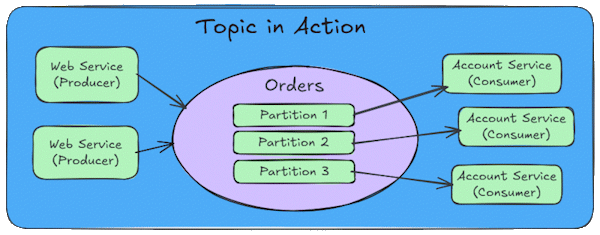
Topics are logical channels within the cluster where related messages are grouped together. Think of a topic as a category or feed name. For example, you might have topics for "user-events", "order-transactions", or "system-logs". Producers publish messages to specific topics, and consumers subscribe to topics to receive those messages. Each consumer requires at least one partition to plug into, but can listen to more than one partition.
Partitions are what enable Kafka's parallelism. Each topic is divided into one or more partitions, and each partition can be processed by a different consumer. This allows you to scale horizontally by adding more consumers to handle increased load. Generally you should create more partitions than consumers, this will give the flexibility to add more consumers and they will need a partition to connect with. If you spin up more consumers than partitions (over partitioning), the extra consumers without a partition just sit there doing nothing; they won't even help out if one of the consumers goes down.
Messages within a partition are ordered, but there is no ordering guarantee across partitions. This is an important consideration when designing your message flow.
Keys determine which partition a message goes to. When keys are used with messages, Kafka hashes the key and chooses a partition based on the hash. Messages with the same key always go to the same partition, ensuring they are processed in order by a single consumer. Without a key, messages are distributed across partitions in a round-robin fashion. This provides good load distribution but sacrifices ordering guarantees.
Partition Strategy
Everyone asks “how many?” and the answer is not straight forward. It depends on the messages size, the cluster server size, whether the storage is HDD/SSD or some cloud service. Essentially, you will have to test out your chosen configuration using the hardware that you have. More partitions increase the background work that the cluster must manage (indexing) increasing the CPU load and Memory usage, so don't use too many but also don't use too few.
Choosing the right number of partitions is crucial for performance and scalability. A good starting point is to create 2-3 partitions per consumer you plan to run initially. This gives you room to scale by adding more consumers without needing to repartition.
- Too Few Partitions - Limits parallelism and consumer scaling.
- Too Many Partitions - Increases overhead, memory usage, and recovery time.
- Right Balance - Plan for 2-3x your current consumer count to allow for growth.
Key Ordering Strategy
The most critical reason for assigning messages to the same partition based on a Key is strict message ordering. While Kafka guarantees that messages within a single partition are stored and delivered in the order they were sent, it provides no such guarantee across different partitions.
Message ordering is critical in many business scenarios. Consider a banking application processing transactions. In a banking system, the sequence of events is everything. Imagine a system that processes transactions for individual bank accounts. If a withdrawal processes before a deposit, you might incorrectly reject a valid transaction.
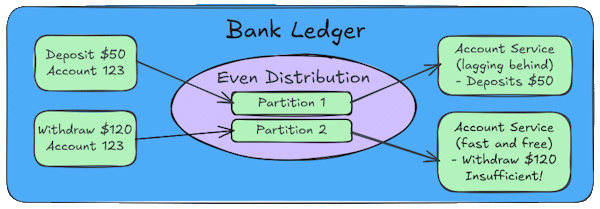
Suppose a customer has $100 in their account and performs two quick actions: (Deposit $50), (Withdraw $120)
Even Distribution
If you don't use a key (or use a random one), Kafka will distribute these messages across different partitions to balance the load.
- Partition 1 - Gets an event (Deposit $50)
- Partition 2 - Gets an event (Withdraw $120)
If the consumer for partition 2 is slightly faster than the consumer for partition 1, it will try to process the $120 withdrawal before the $50 deposit is registered. The system would see a balance of only $100, reject the withdrawal for insufficient funds, and the customer’s experience is broken.
Ordered Distribution
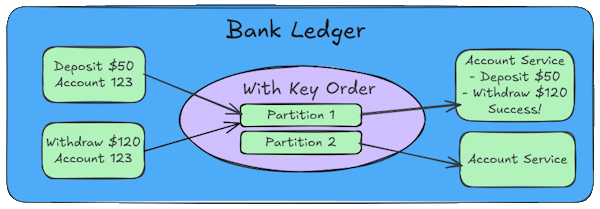
If we use the Account ID as the message key, Kafka ensures that both events go to the same partition.
- Partition 1 - Gets an event (Deposit $50)
- Partition 1 - Gets an event (Withdraw $120)
Because both events have the same key they go to the same partition and they are processed in order. The system correctly sees a the balance increase to $150 and then allows the withdrawal of $120.
Kafka Demo Application
I have created a demo application that illustrates the concepts discussed in this article.
You can find it on GitHub at https://github.com/ZonerDiode/kafka-scaling-demo.
It demonstrates how to configure Kafka producers and consumers, manage topics and partitions, and implement a key strategy to ensure proper message ordering.
Installing The Demo
To install and run the demo application:
Clone the repository:
git clone https://github.com/ZonerDiode/kafka-scaling-demo.git
Navigate to the project directory:
cd kafka-scaling-demo
Start the containers using Docker Compose:
docker-compose up -d
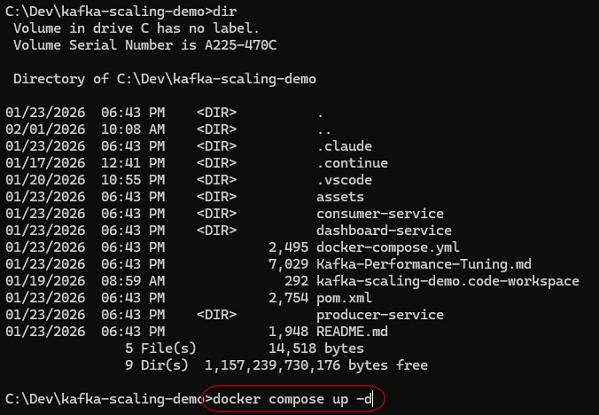
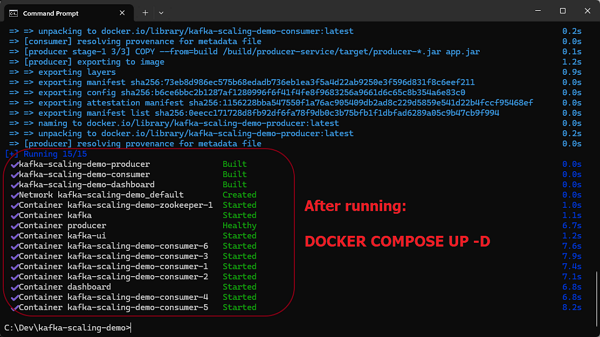
You should see docker building the containers and starting Kafka and Zookeeper.
Different Key Settings
Once the demo is running, you can experiment with Kafka's partitioning and ordering behavior.
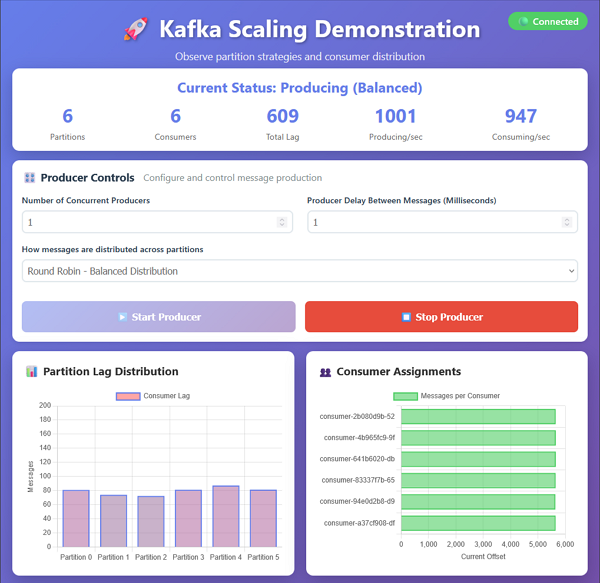
To view the dashboard UI, open a browser and navigate to: http://localhost:3000
Updating the number of producers changes how many instances are sending messages at the same time. The delay between messages controls how quickly the messages are produced. Setting a short delay with many producers can create a high volume of messages that can overwhelm the consumers.
On my workstation, the default of 1 producer with 6 consumers produces messages at a rate that is manageable for all consumers.
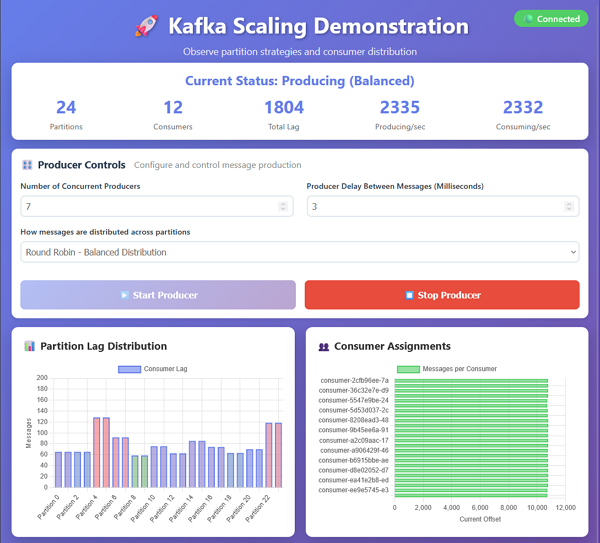
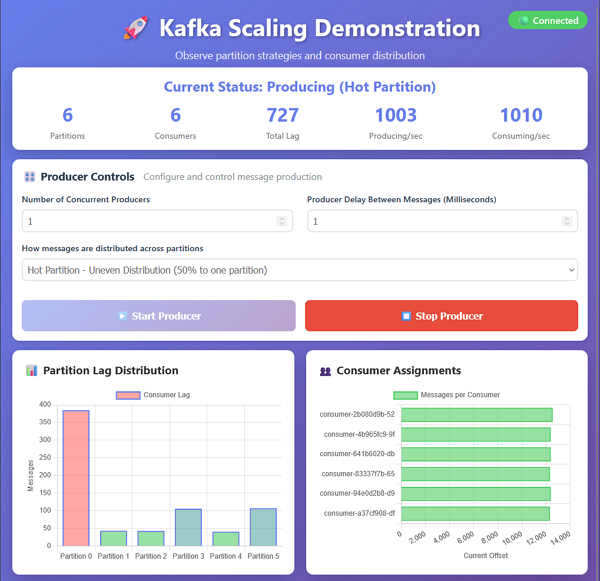
Here is an example of the demo application running with round-robin partitioning. The messages are distributed across partitions without a key, so the order of processing is not guaranteed but each partition gets an even amount of messages to process.
Changing the key strategy to Hot Partition demonstrates the problem of having more messages delivered to one partition over the others. The consumer for Partition 0 cannot keep up with the amount of messages and starts to lag behind the other consumers.
Changing Partitions & Consumers
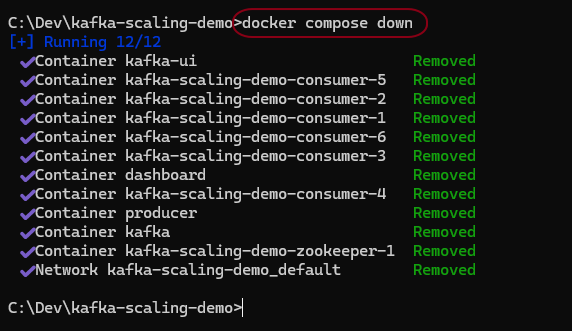
To update the number of partitions or consumers, you can modify the docker-compose.yml file and restart the containers.
From the command line type:
docker compose down
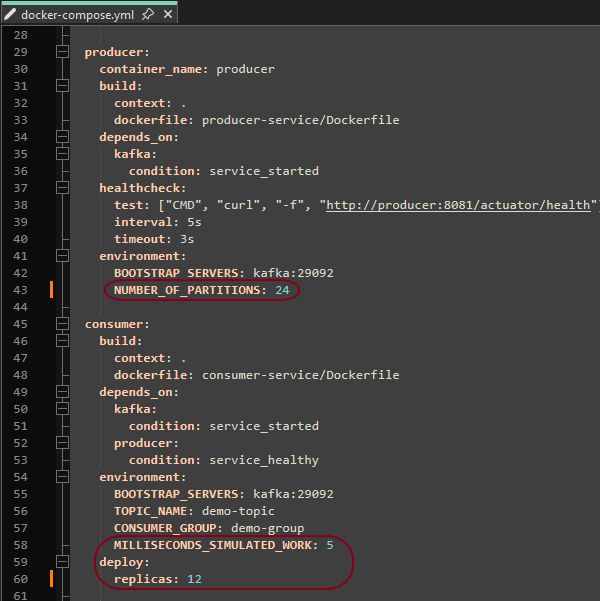
Edit the docker-compose.yml file to change the number of partitions and consumers.
For example, to increase the number of partitions to 24 and consumers to 12, update the configuration as shown.
The simulated work delay can also be updated to make the consumers process messages more quickly or slowly.
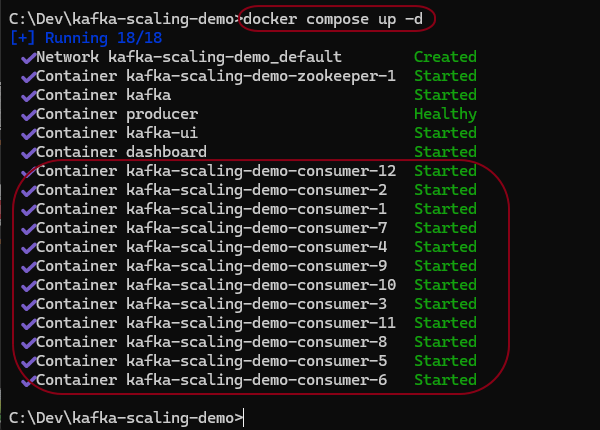
Restart the containers with:
docker compose up -d
You should see 12 consumers running in the UI.
Play with the settings and observe the behavior
See how many messages you can process with different numbers of partitions and consumers.
I have increased the producers to 7 and added more delay between messages to simulate a different workload.
The amount possible is going to be limited because we are running on a single computer with limited resources. If this was run in a real cluster with seperate producers and consumers, you would be able to process many more messages with the right configuration.